ONEDRIVE PHOTOS / RESTYLE WITH REFERENCE
Show me what you mean
A mood, a texture, a movie still. Sometimes it is easier to show a style than to describe it. I built a hack MVP that lets a reference image do that work in OneDrive Photos.
Watch the 1:32 hack demo- Role
- Product design and hack MVP development.
- Collaboration
- Team credits are not documented in this project record.
- Period
- 2026 hack demonstration.
- Scope
- Reference-led AI photo editing, from Figma flow to a working MVP.
TL;DR / Overview
- Problem
- A style can be easy to recognise and hard to describe in a prompt.
- Role
- I designed the reference-led flow and developed the hack MVP.
- Surfaces
- OneDrive Photos editor, image picker, reference input and generated preview.
- Reach
- Hack demonstration with example photos; no adoption data reported.
- Result
- Upload, replace, paste or drop a reference, then generate a restyled image.
- Status
- Hack MVP alongside a broader Figma direction, not a shipped reference feature.
01 / THE QUESTION
The picture came
before the prompt.
AI Restyle already offered curated styles and freeform prompts. But inspiration often starts somewhere else: a scene in a film, a visual trend, a colour palette or a texture.
Translating that into a useful instruction adds another task before editing can begin. The question behind this exploration was simple: what if someone could bring the picture instead?
02 / THE HACK I BUILT
A working way
to point.
I developed this MVP during a hack. It puts From Reference alongside the existing styles, so someone can start with an image and swap it without writing a new prompt.
The recording below is the MVP itself. The Figma screens further down explain the wider design direction.
The recording could not load here. Try the direct MP4 link below, or read the transcript and illustrated walkthrough.
The captions could not load. The complete transcript is available below.
- 0:36 Start with a reference
- 0:52 Change your mind
- 1:08 See the result
- 1:10 Paste or drop it in
Download the demo (MP4)Download English captions
Read the demo transcript
Narration transcribed locally and lightly edited for punctuation. The demo’s description of matching a style is its design ambition, not a measured fidelity claim.
0:03 / The starting point. Not too long ago, we started rolling out AI Restyle on OneDrive. A way to take any photo from your gallery and transform it using curated prompts, or even your own. But creativity doesn’t always start with a prompt. Sometimes it starts with a movie scene. A visual trend you spot online. A mood. A texture. A style you can see, but don’t quite know how to describe.
0:27 / The question. Writing the perfect prompt can take time, and sometimes help from another AI. So we asked a simple question: what if you didn’t need words at all?
0:37 / The reference-led flow. What we’ve built lets you restyle your photo using a reference image, capturing the exact look, feel, and aesthetic you’re inspired by. Just upload a reference. Swap it out if you change your mind. Hit send. That’s it. No prompt engineering. No guesswork.
1:10 / Other ways in. And to make it even easier, you can add a reference by simply copying and pasting it, or dragging and dropping it straight into the prompt box. And just like that, your photo, reimagined in the style you love.
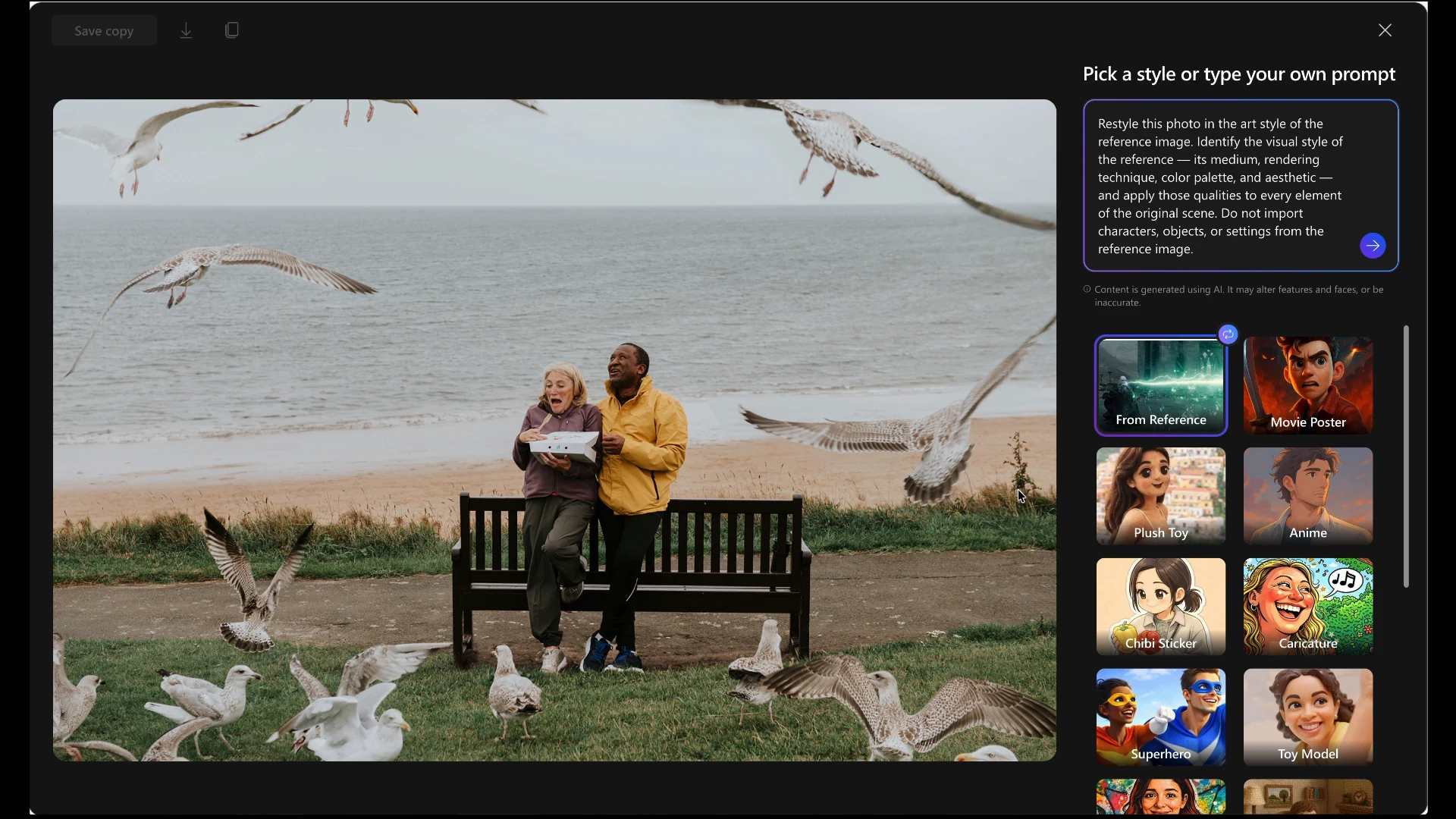
Change the style,
keep the scene.
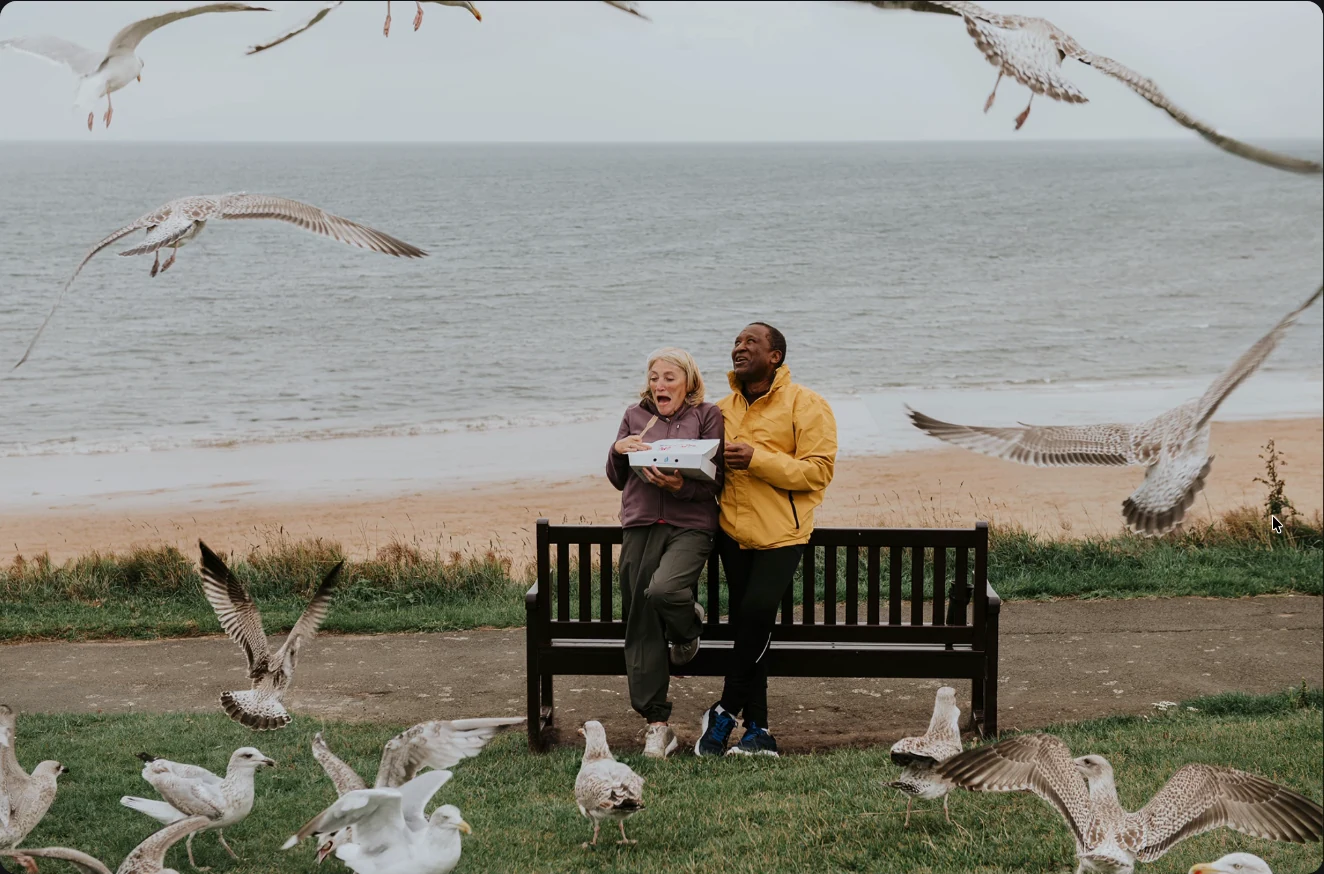
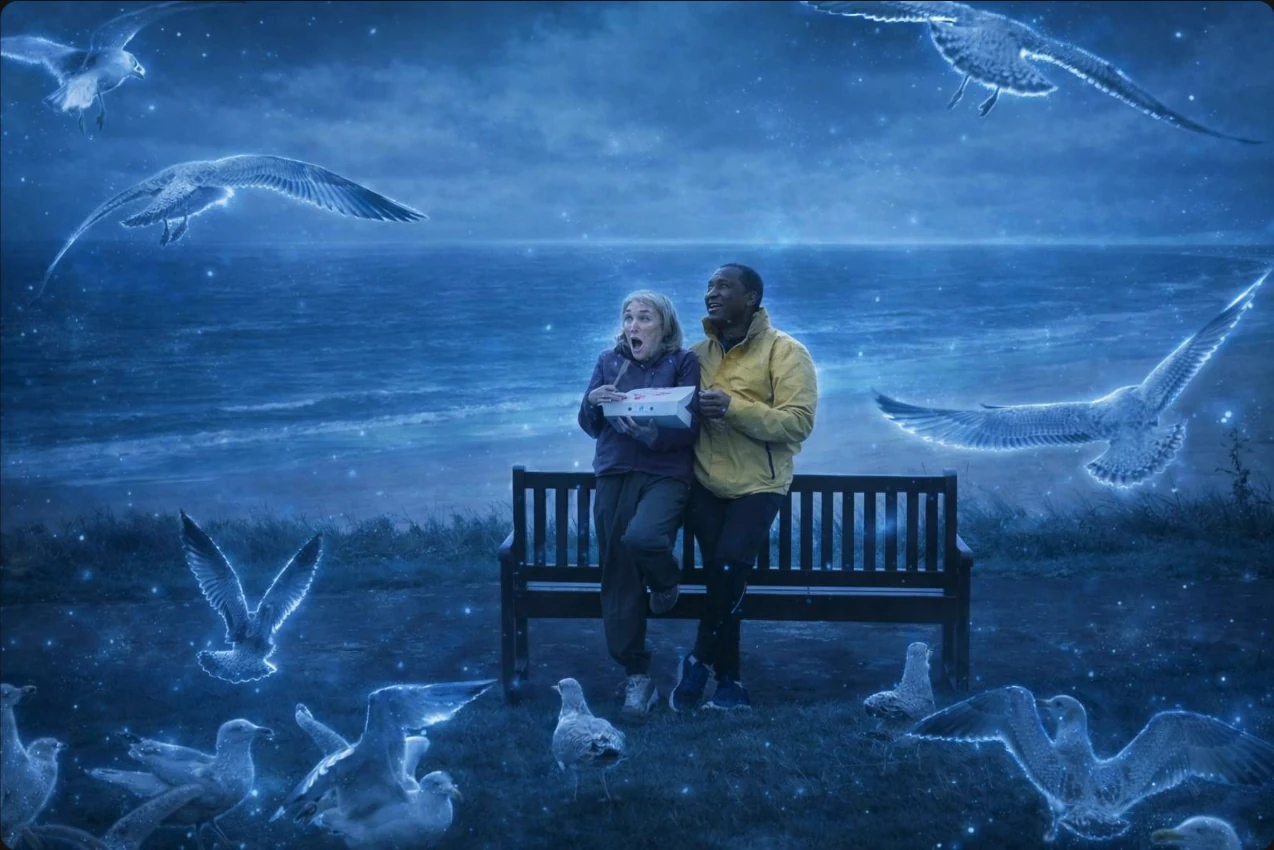
At 1:08, the beach photo returns with a luminous blue treatment. The couple, bench and birds remain recognisable. The reference supplies a visual direction rather than a new subject.
The clip also shows adding a reference by paste and drag-and-drop. Its final pass ends during generation; the earlier completed result is the one shown at the top of this page.
03 / THE FIGMA DIRECTION
Two images.
Different jobs.
The Figma flow places the reference inside the prompt composer. The hack makes it discoverable through a From Reference tile as well as paste and drop. Both keep the same distinction: your photo is the content; the reference is the visual direction.
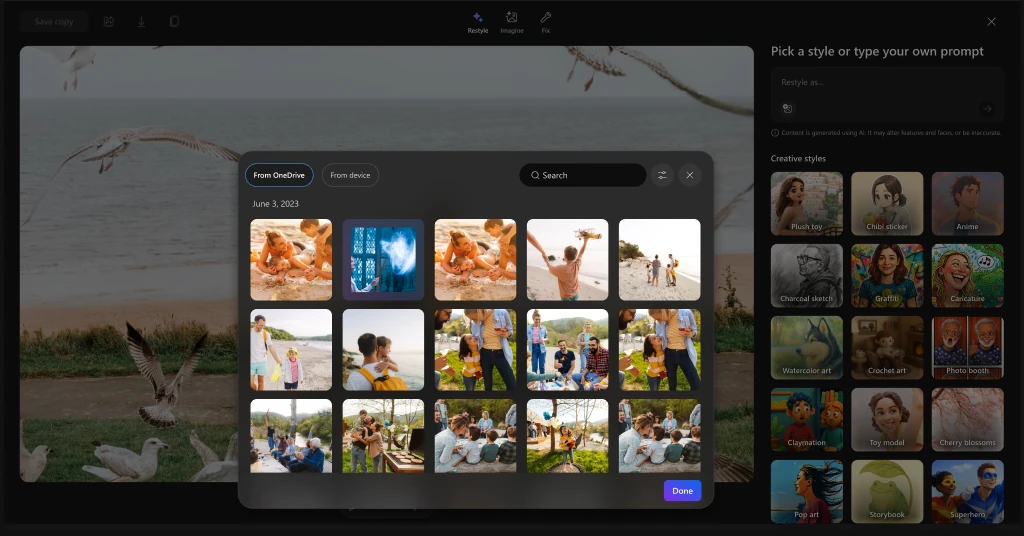
01 / BRING IT WITH YOU
Start where the image
already lives.
The picker offers OneDrive and device sources without replacing the editing canvas. The original photo stays behind the selection, keeping the task in context.
The hack carries that idea into upload and replacement, then adds the familiar shortcuts of copy, paste and drag-and-drop.
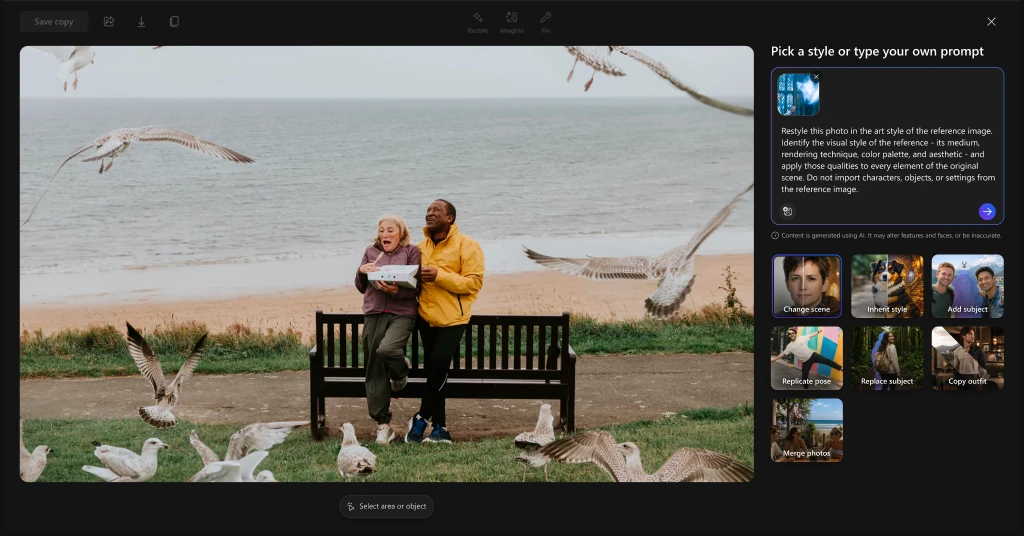
02 / BORROW THE STYLE, NOT THE SUBJECT
Let the system do
the translating.
The instruction separates the reference’s medium, rendering, palette and aesthetic from its characters, objects and setting. Those should not be imported into the original scene.
The MVP prepares that instruction after a reference is selected. The point is not to eliminate language from the system, but to stop making someone write it from scratch.
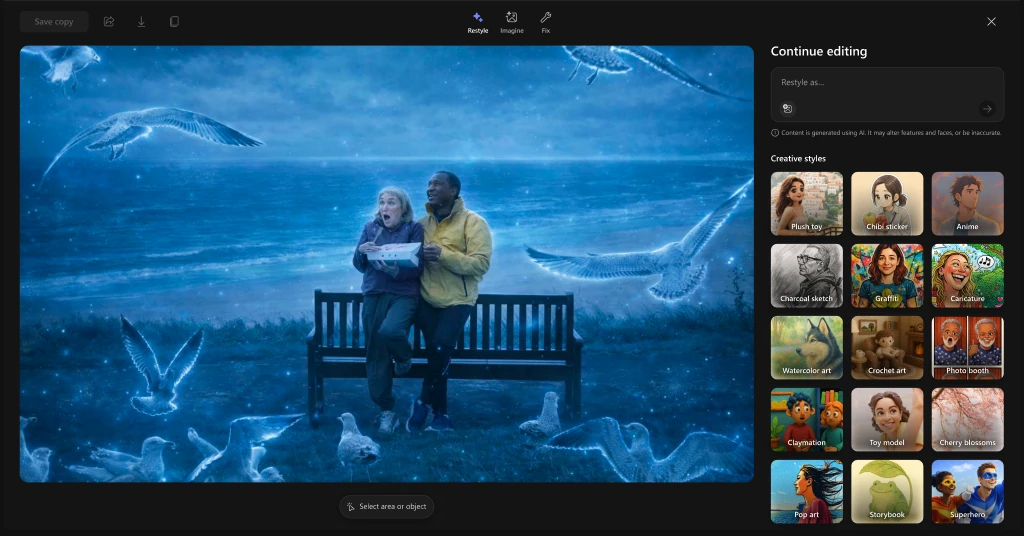
03 / LEAVE ROOM TO DECIDE
A result is something
to inspect.
The Figma flow returns to Continue editing after generation. In the hack, Save copy, reset and feedback controls sit beside the completed result.
The AI disclaimer stays visible. A new style can also change features and faces, so a striking output is not enough reason to assume everything has been preserved.
04 / WHAT THE HACK ESTABLISHED
Less describing.
More trying.
The hack gave the idea a working interaction: add a reference, change it, submit it and inspect a generated result. It did not establish repeatable style fidelity, identity preservation or adoption.
Next, I would test two things separately: whether people can use the reference flow without help, and whether the output borrows the right visual qualities while preserving what matters in the original photo.
The aim was not to turn everyone into a better prompt writer. It was to make “something like this” a useful place to start.
This case brings together my supplied hack recording and the “Attach an image to edit with” Figma flow. The broader editing options in that file are design explorations, not features claimed for this MVP. Open the Figma design reference.
KEEP EXPLORING